Every sites in MCHN can have their own account roles and set permissions for each roles. ( Site Setting > Account Roles )
Add an New Account Role
STEP 1. Click ‘New Account Role’ button

- Account Role: the title of new account role (Required)
- 2FA Required: whether Two-Factor Authentication is required
- ON: the accounts that have this role should set 2FA
- OFF: the accounts that have this role don't need to set 2FA. Optional.
- Permissions: the permissions that the new account role will have
- It shows all permission that MCHN has currently, and you can search the permission that you want by typing permission's title or description.
- Save: the button to save the new account role with permissions
- After the new account role saved successfully, you can see new one on the account role list after reloading the page.
Edit an Account Role
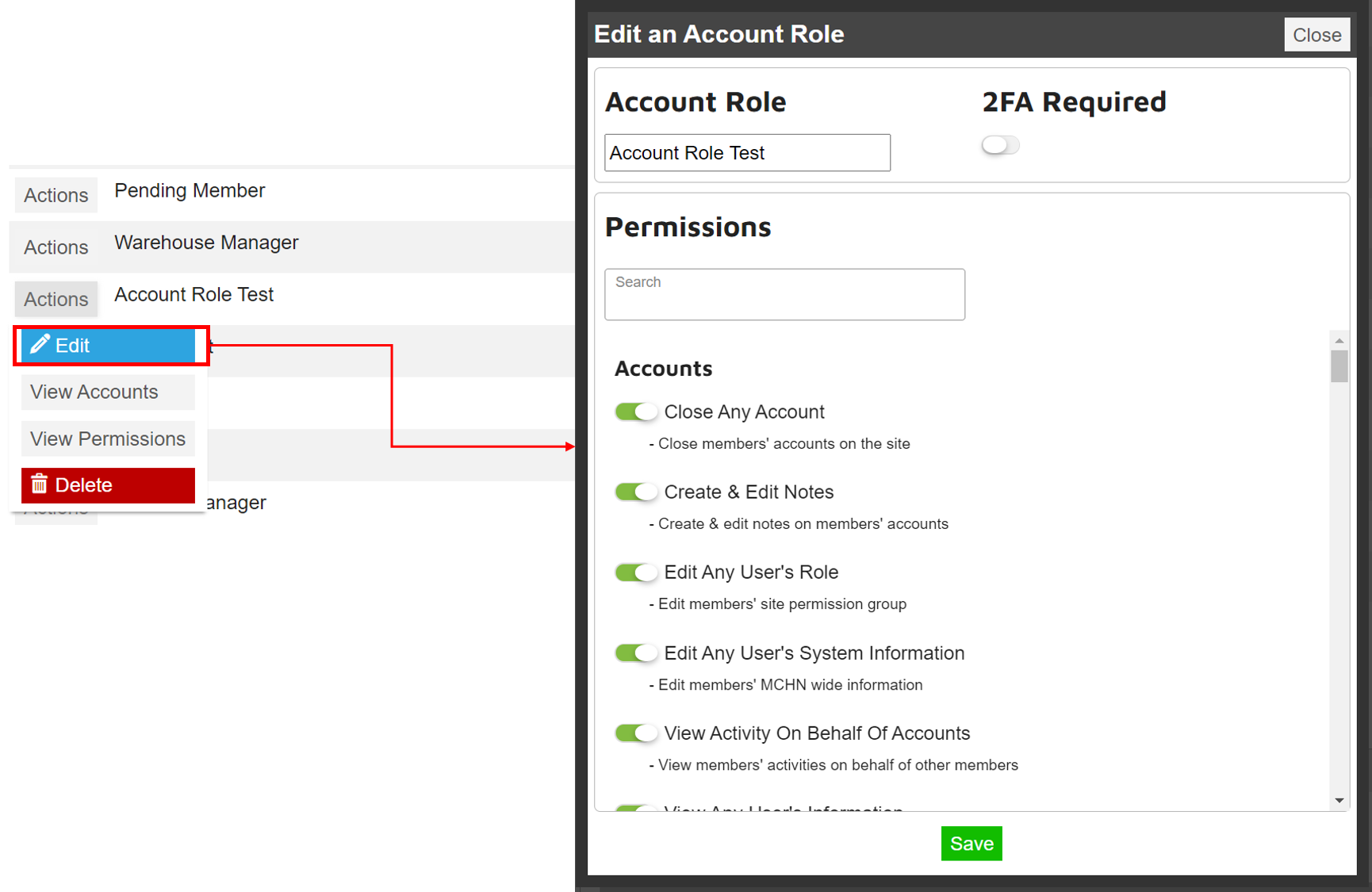
STEP 1. Click ‘Edit’ button under 'Action' button
- Non locked account role
If the account role is not locked, you can edit everything (title, 2FA required, and permissions)
- Locked account role
If the account role is locked, users can edit only 2FA Required except title and permissions. Only admin can edit whole thing for the account role.
Delete an Account Role
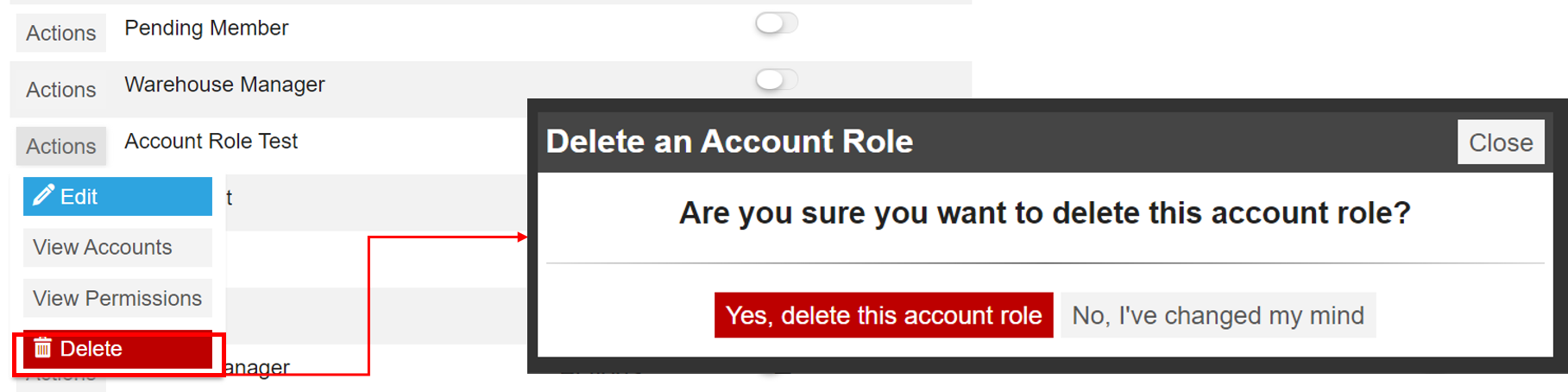
STEP 1. Click ‘Delete’ button under 'Action' button
- Case 1: No accounts that has the account role
If there isn't any account that has the role, user can delete it without any additional action.
- Case 2: Some accounts has the account role
If there are some accounts that has the role, user should select another account role that can be used instead of the deleted account role.

Was this article helpful?
That’s Great!
Thank you for your feedback
Sorry! We couldn't be helpful
Thank you for your feedback
Feedback sent
We appreciate your effort and will try to fix the article