Site Theming
TABLE OF CONTENTS
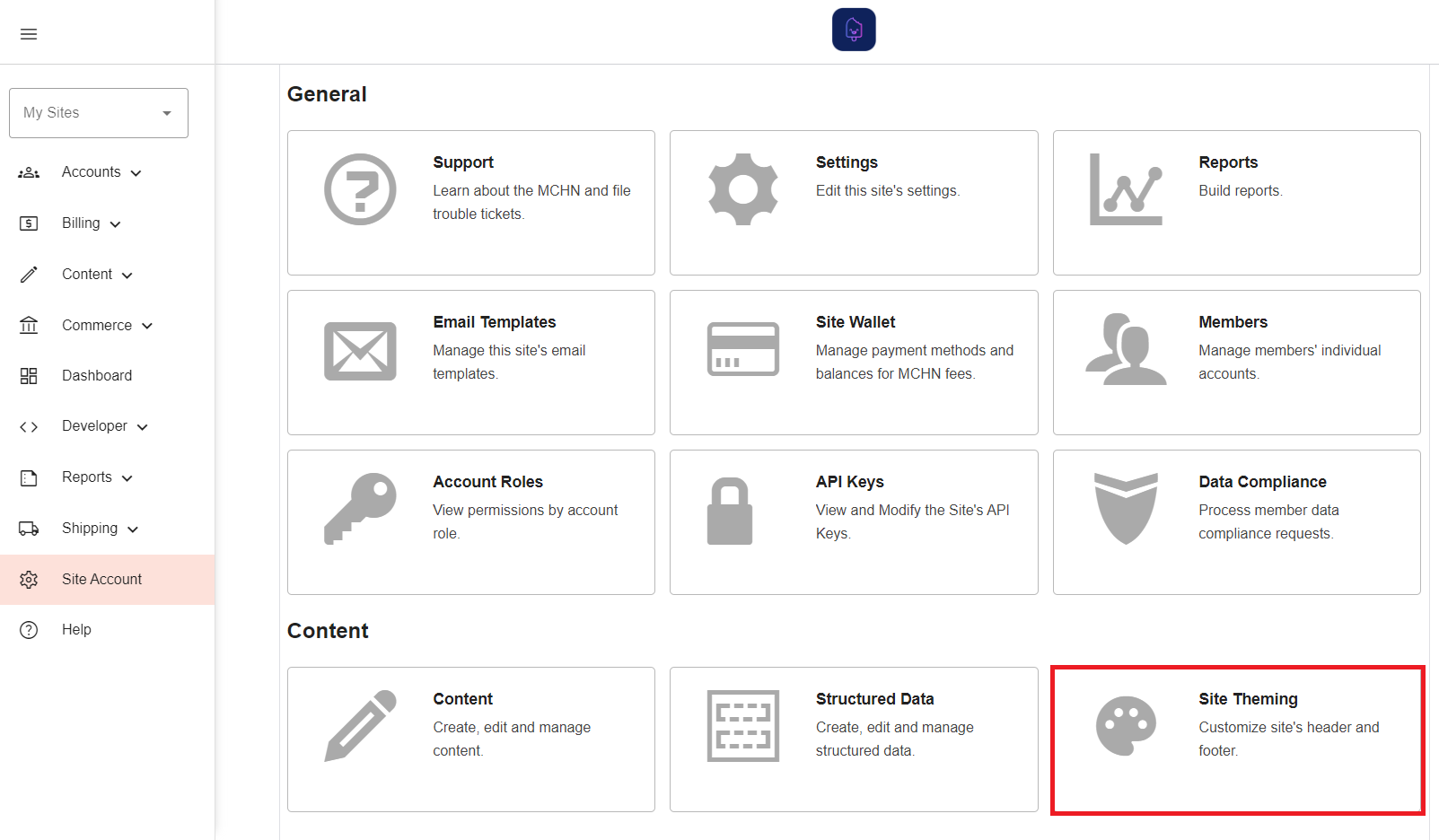
To customize your site's header and footer, go to your Site Account and click on the Site Theming button under the Content section.
Header
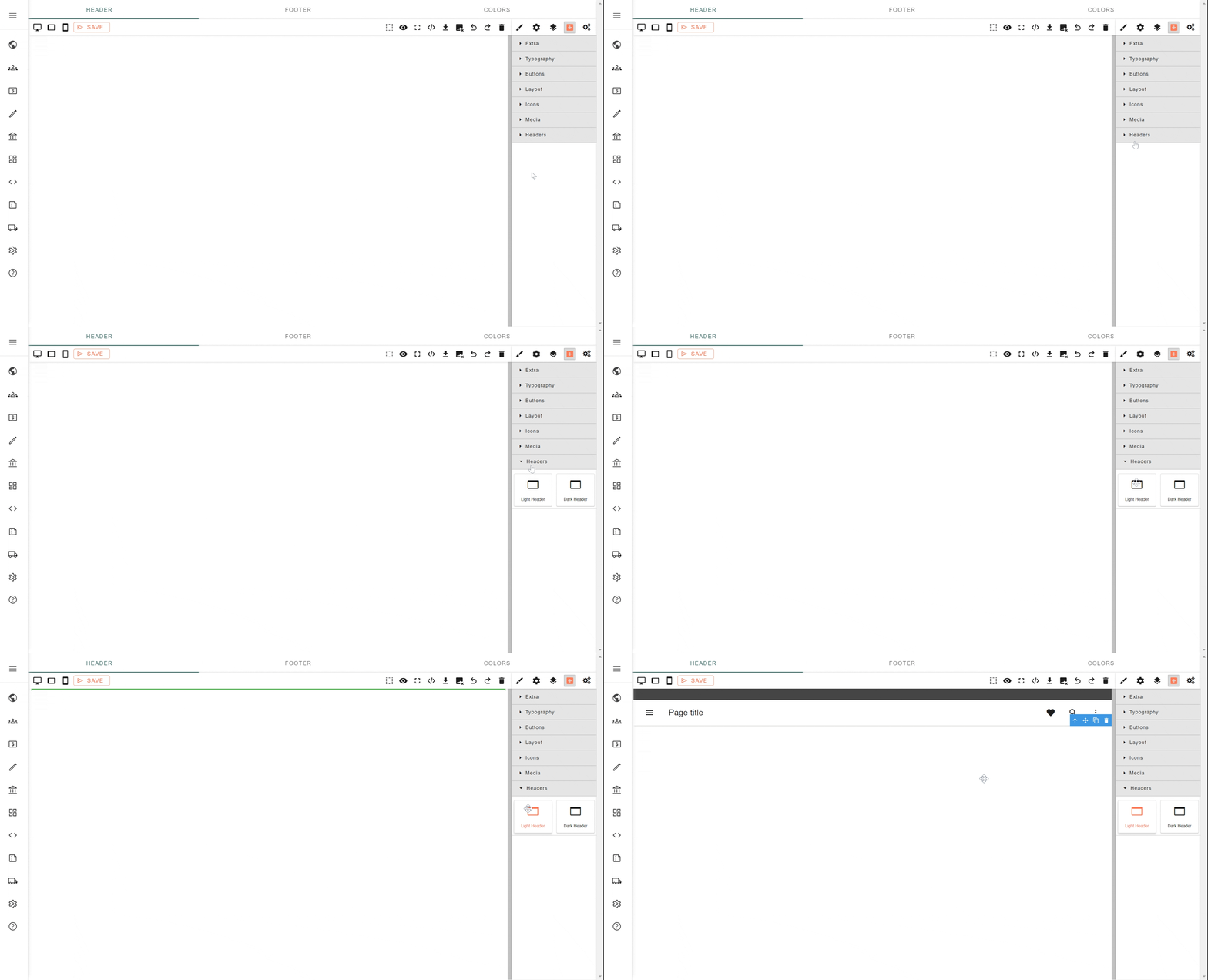
The first step to create your header is to drop a pre-built one from the Headers accordion on the right side of the editor.
Customize elements
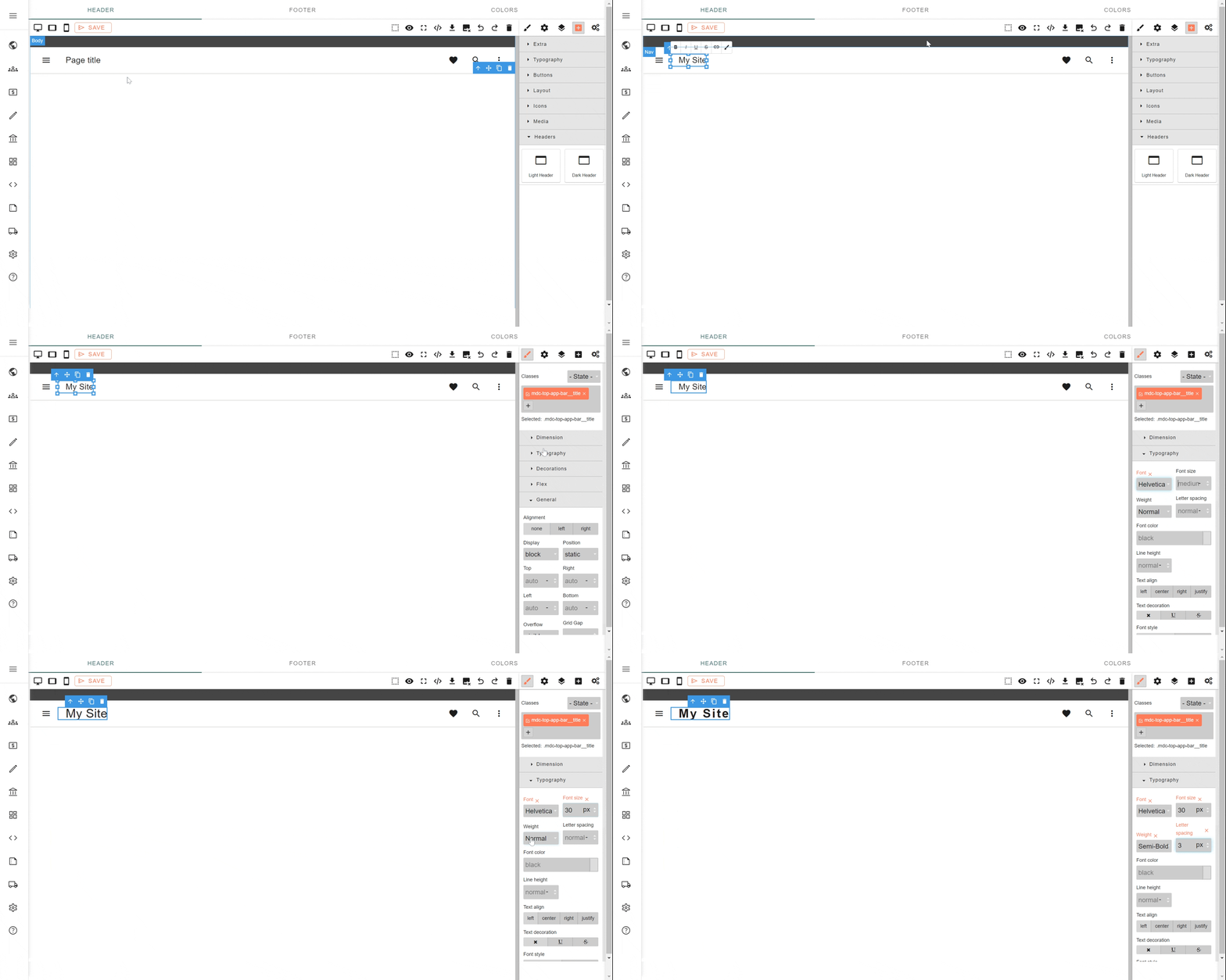
There are several options available to customize your header's elements by selecting the element and clicking the brush on the top right side of the editor.
Add elements
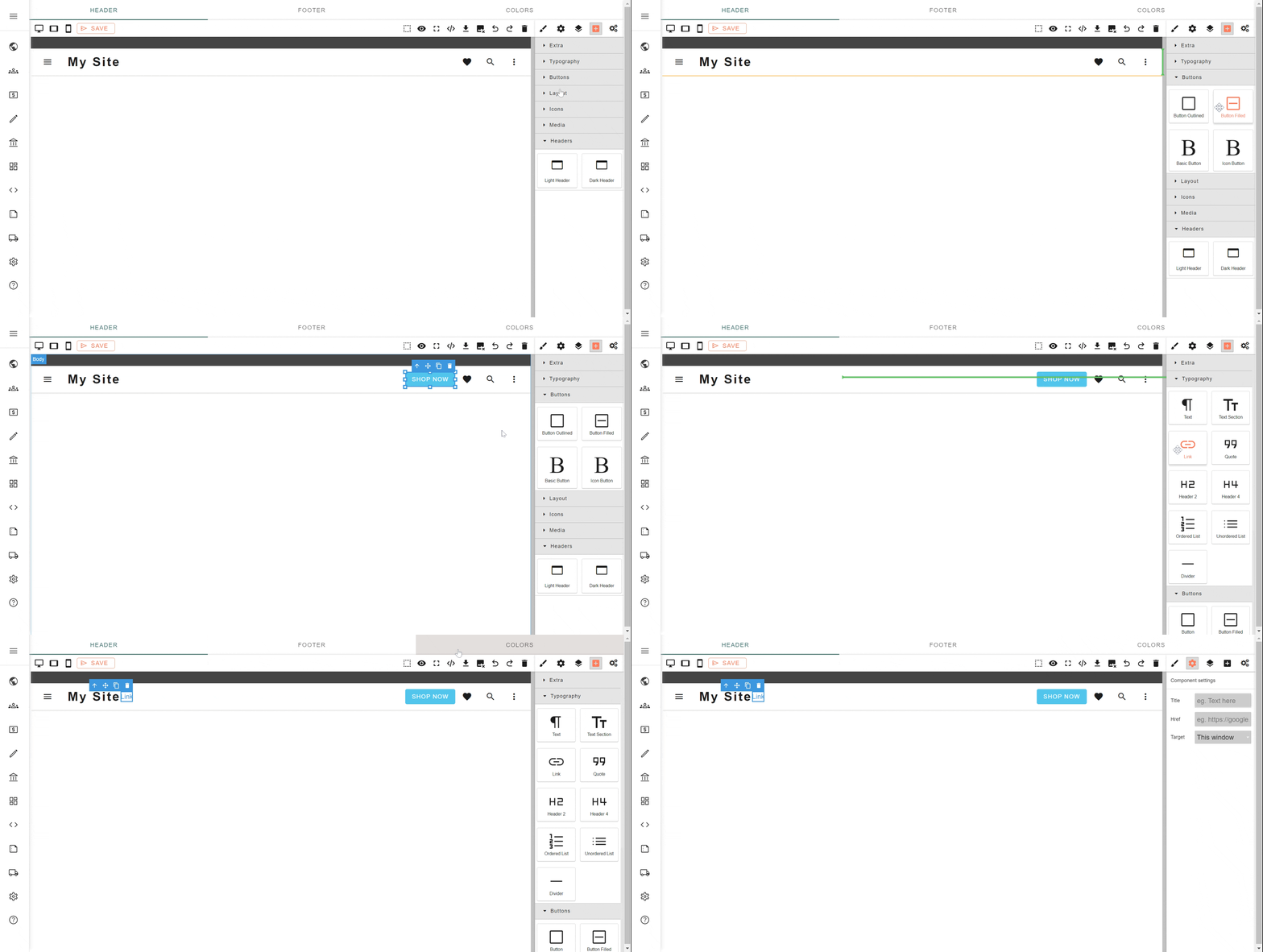
You can add new elements to your header such as buttons or links using the `+` icon on the right side of the editor.
Then, drag and drop your element at the desired position in the canvas.
Some elements such as links have additional settings clicking the gear icon.
Left navigation menu
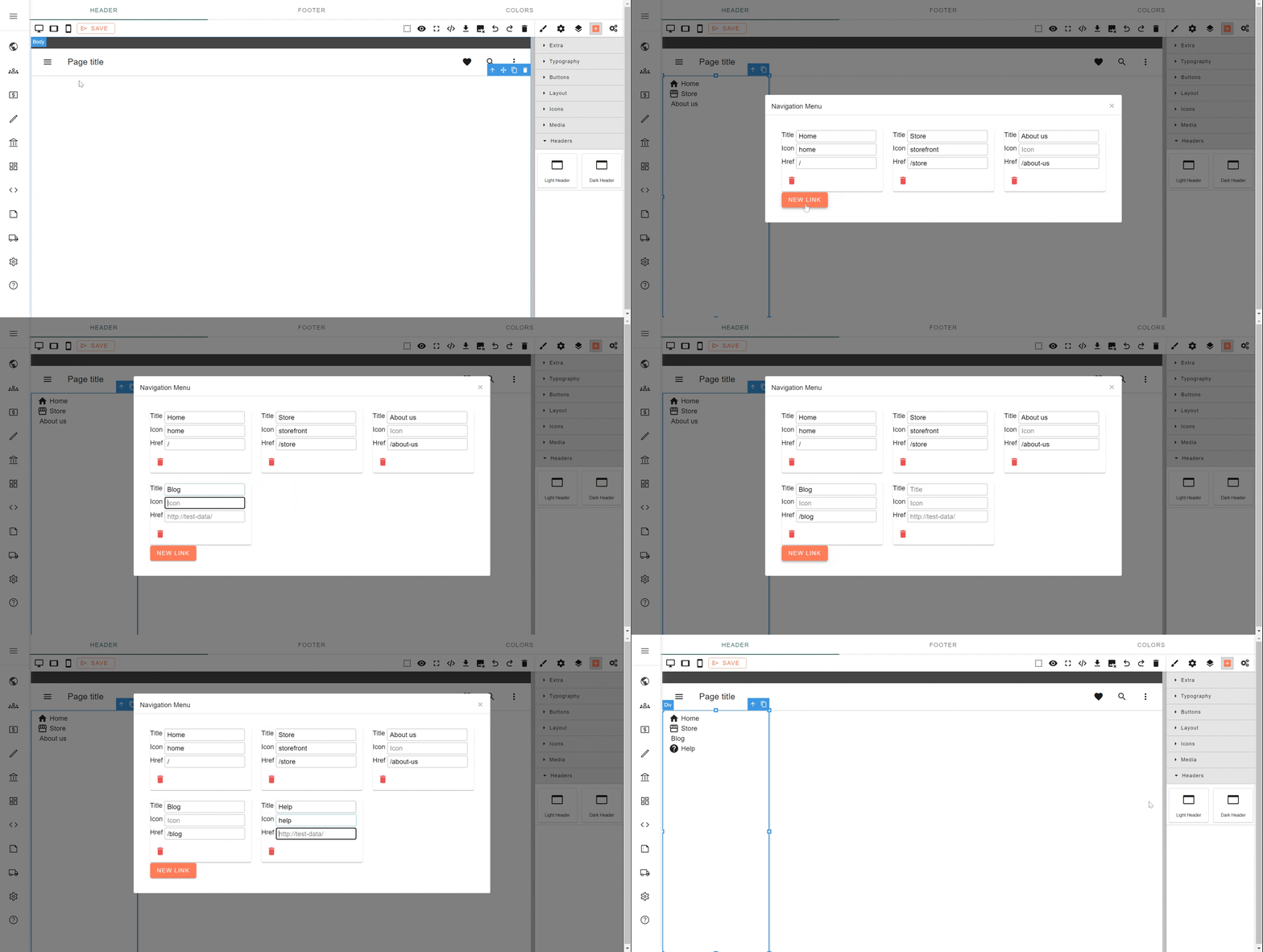
The default header comes with a left navigation in which you can easily add or remove links by double clicking on it.
The icons used on the left navigation come from https://fonts.google.com/icons.
Footer
To customize your footer, go to the footer tab and drop a pre-built footer from the Footers accordion on the right side of the editor.
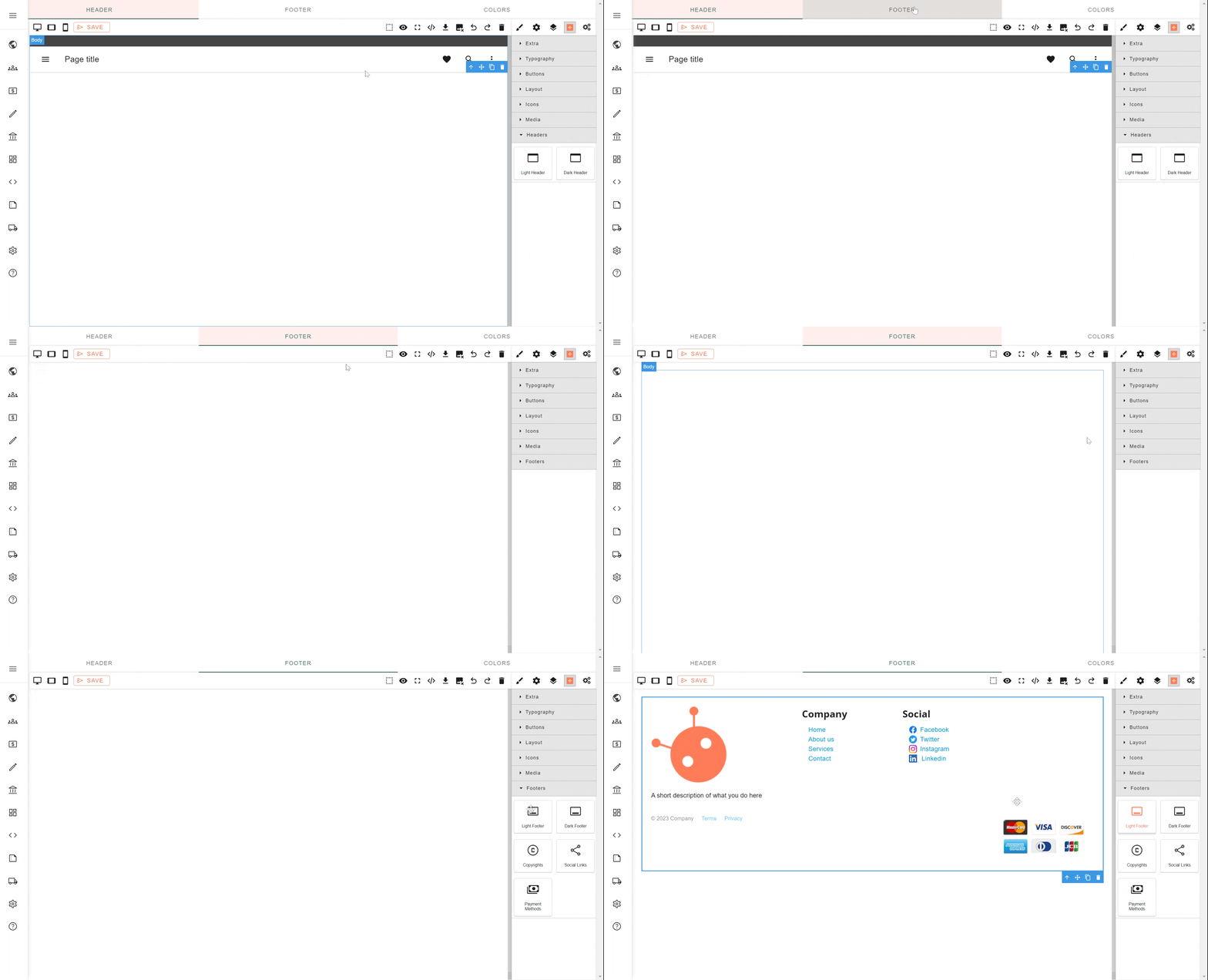
You can customize, add and remove elements the same way as the header.
Social links
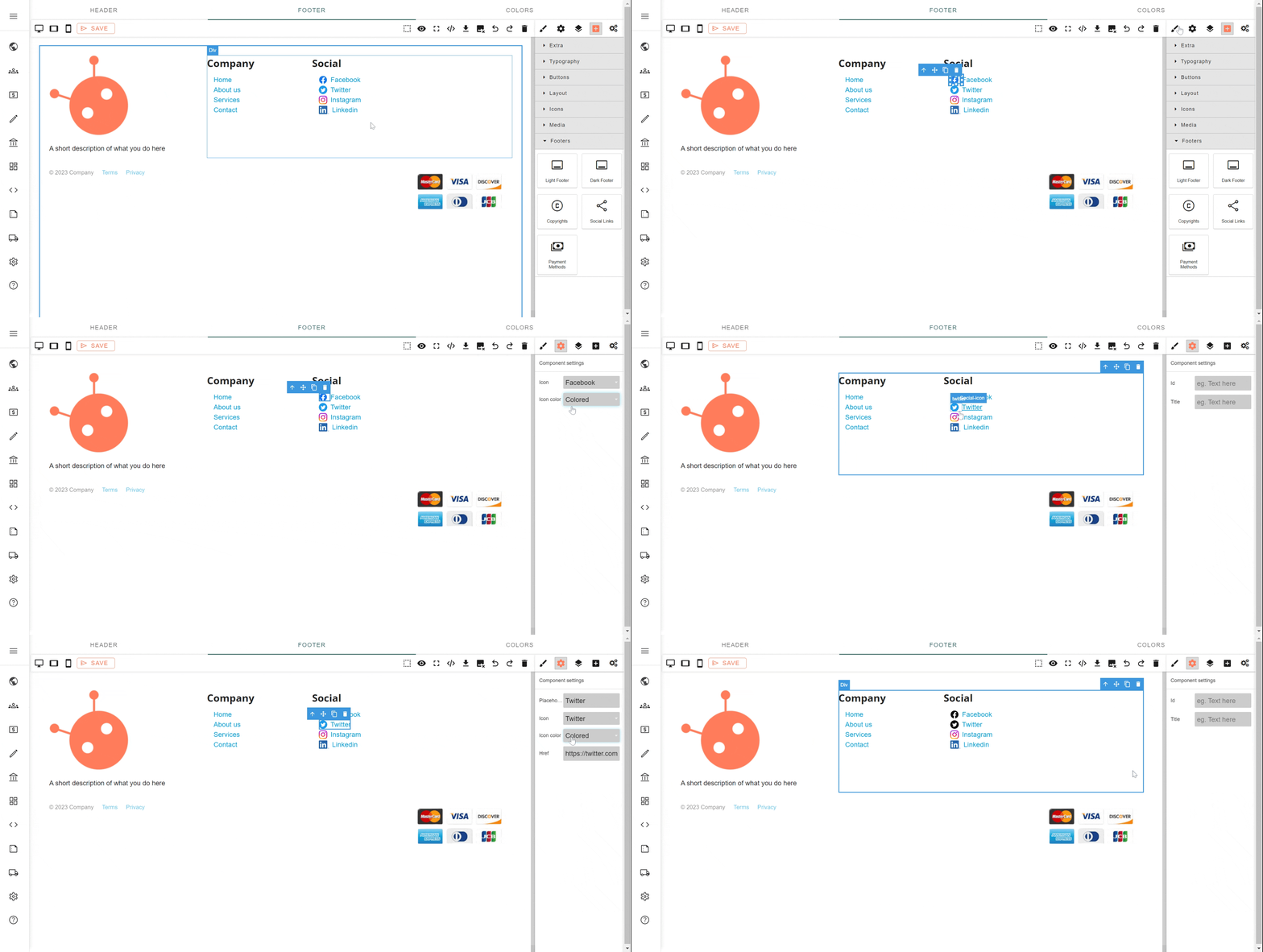
Social icons and links have additional settings under the gear icon.
Social links href are automatically set according to the information linked to your site account.
This setting is available by selecting the social-link and clicking the gear icon.
Was this article helpful?
That’s Great!
Thank you for your feedback
Sorry! We couldn't be helpful
Thank you for your feedback
Feedback sent
We appreciate your effort and will try to fix the article